Help center → November 21, 2026 · 3 min read
Connect Charterfy to Grok
Add Charterfy to Grok as a custom connector in a few steps, and learn what the assistant can do and how to disconnect it.
- Grok
- MCP
- Integrations
You can connect Charterfy to Grok on the web by adding it as a custom connector. You don't need a paid Grok plan. These steps were checked in Grok on November 21, 2026. If a label has changed, follow what your screen shows.
How to connect
-
Sign in to Grok and go to grok.com/connectors. Grok opens Settings on the Connect Apps tab.
-
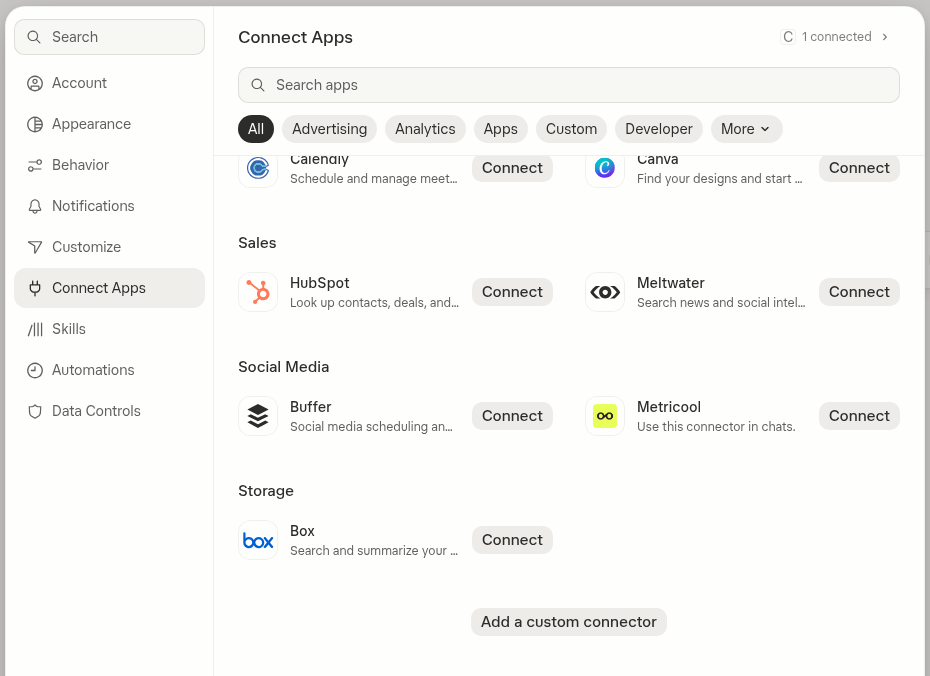
Scroll to the bottom of the app list and click Add a custom connector.
-
In the Add MCP Server form, enter "Charterfy" as the Name and
https://mcp.charterfy.com/mcpas the Server URL. Leave Headers blank, then click Add MCP.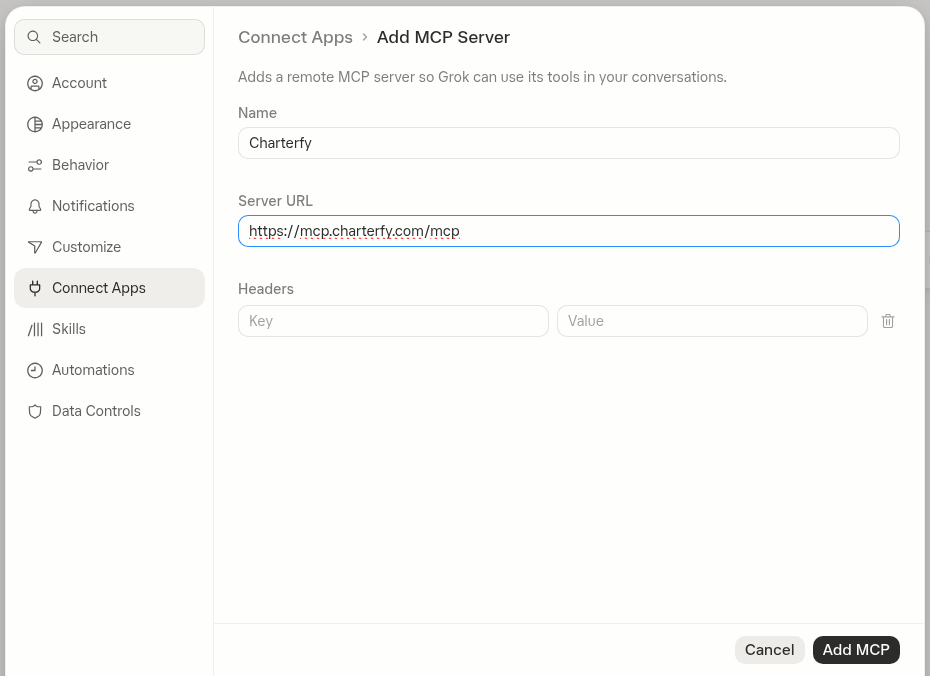
-
Grok opens a popup and shows Complete authentication in the popup window. If nothing opens, allow popups for grok.com and try again.
-
In the popup, log in to Charterfy if asked, then approve the connection to Charterfy.
The confirmation screen may name a different assistant. That's expected; continue.
-
On the Grok would like access to your account screen, click Allow access. The popup closes.
-
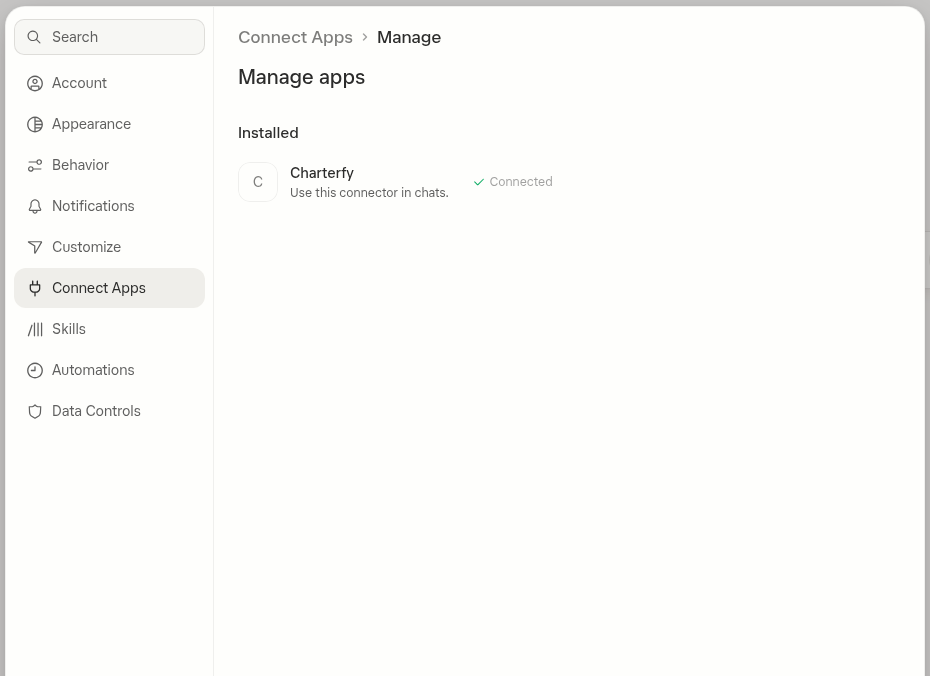
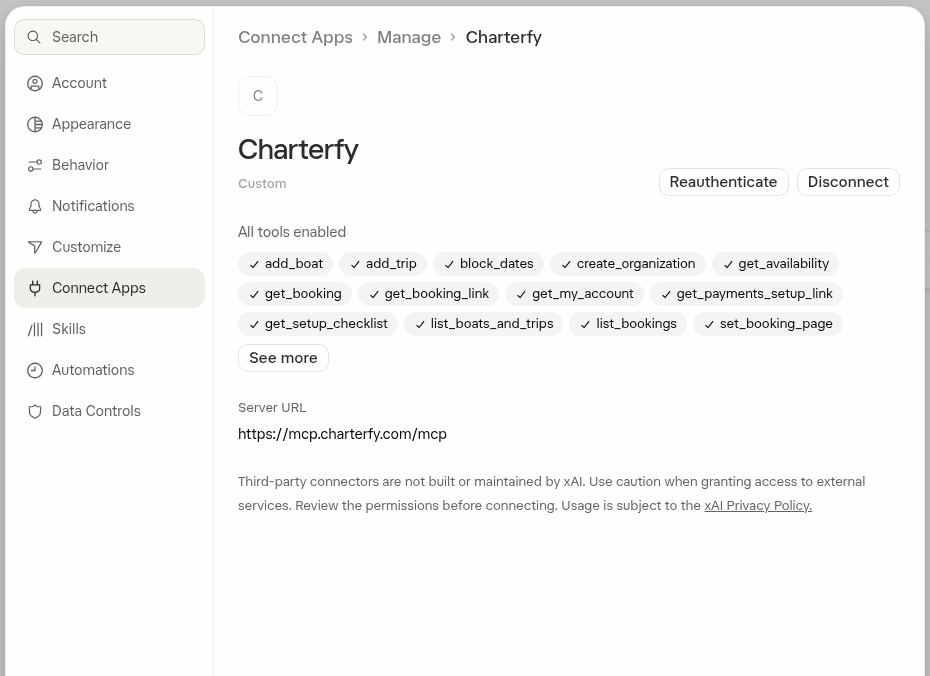
You're connected. Connect Apps shows 1 connected, and under Manage apps › Installed, Charterfy shows Connected. Open Charterfy to see Reauthenticate, Disconnect and All tools enabled.
For changes such as closing a date, Grok shows you a preview first. Confirm it before the change is saved.
What the connection does
Charterfy's supported tools let the assistant read your account and setup checklist; create an organization; add and list boats and trips; configure booking-page hours and time zone; show your booking link; provide a single-use link for an owner or administrator to set up payment processing; list bookings and open one booking's details; check availability; and close dates after showing you a preview and receiving your confirmation.
What data is shared
When you use the connection, the information needed for the requested tool is sent to Grok's provider at your direction. This can include your account and business data, and a guest's name or contact details when you specifically ask for that guest's information. The provider handles conversation content under its own terms and privacy policy. WorkOS receives the identity details needed to authorize the connection. See sections 2.4 and 4.7 of the Charterfy Privacy Policy for more information.
Disconnect Charterfy
In Grok, go to grok.com/connectors and click the connected count at the top of Connect Apps (for example 1 connected) to open Manage apps. Open Charterfy and click Disconnect. If Grok asks you to sign in again later, use Reauthenticate on the same screen. To revoke the connection on Charterfy's side too, sign in to the Charterfy dashboard, choose Support in the footer, and email us from the address on your Charterfy account. Tell us which account to disconnect. We reply within one business day.
Need help?
Email support@charterfy.com with the account email, the step where you got stuck, and any error message. Please do not send your password or a guest's full contact details.